
KITCHEN DISPLAY SOFTWARE
Kitchen Display Software
Bring eligible preparation items into a kitchen order queue. Review ticket details, mark individual items Done, and manage open, held and completed orders through EPOS Bookings.
Available functions depend on your plan, location settings and staff access. Order release depends on the ordering journey and its payment or check-in stage.
BEFORE PREPARATION
Send eligible items to the kitchen at the right stage
Kitchen display routing depends on the location, product eligibility and ordering journey. Selecting a product does not necessarily send it straight to the kitchen.
Product orders
Eligible product orders can be released to the kitchen at payment. Confirm the release stage for each ordering channel in your setup.
QR table orders
Eligible QR preparation items can reach the kitchen at KDS-enabled locations. Paid online orders follow successful payment settlement; orders placed without immediate payment follow a separate settlement process.
Products booked for a future activity
Eligible products associated with a future activity can be released once at check-in, where the booking and kitchen configuration supports this workflow.
DURING PREPARATION
Follow each ticket from its items to completion
Give authorized staff a view of preparation tickets and the controls needed to update their progress.
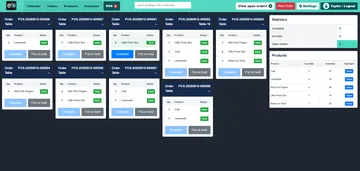
Review the ticket
See the order reference, product names and quantities, with table details where applicable. Recorded notes or special instructions can also appear on the ticket.
Mark prepared items Done
Mark individual lines Done as preparation progresses. An item can be undone before the ticket is completed.
Complete the order
Complete the ticket once every line is marked prepared. Completed tickets can be viewed while they remain within the configured retention policy.
Preparation status is separate from payment status and table availability. Completing a kitchen ticket does not establish that a bill is paid or that a table has been released.
TICKET HANDLING
Keep open, held and completed orders distinct
Use the Open orders, On Hold and Complete views to find tickets in the relevant state.
Put an order on hold
Use Put on hold when a ticket needs to be held. Release order provides the corresponding control for a held ticket.
Review completed orders
View completed tickets while they are retained. Reset order is available for retained tickets where supported by your setup.
Plan for ticket retention
Completed orders follow the configured purge policy. Do not rely on the kitchen display as an indefinite order archive or assume a purged ticket can be recovered.
YOUR KITCHEN SETUP
Connect the software with your service process
Location and staff access
Kitchen display availability depends on location settings and the relevant plan. Staff need authenticated access and the appropriate permissions.
Changes during service
Give your team a clear process for checking amendments, cancellations and refunds against kitchen work already underway. Confirm how your setup handles those changes rather than assuming every ticket updates automatically.
Demonstrate the order sources, release stages and staff controls you need before choosing your setup. Screen selection and placement are a separate part of planning the kitchen installation.
QUESTIONS BEFORE YOU CHOOSE
Kitchen display software questions
What appears on a kitchen ticket?
Tickets show order references, product names and quantities, with table details where applicable. Recorded notes or special instructions can also appear. The exact content depends on the order.
Does every order appear immediately?
No. Kitchen display routing applies to eligible items at enabled locations. Product orders can release at payment, while eligible products for future activities can release at check-in. Confirm the timing for each ordering channel in your setup.
Can staff mark individual items as prepared?
Yes. Staff can mark individual lines Done and undo them before the ticket is completed. Every line must be marked prepared before the order can be completed.
Can an order be held and released?
The kitchen workflow includes Put on hold and Release order controls. Their availability depends on the offered configuration and staff access.
Can a completed order be reopened?
A retained completed ticket can be reset where that control is available. Completed tickets follow the configured purge policy, so indefinite history or recovery after purge is not promised.
Is kitchen display software the same as the display hardware?
The software manages tickets and preparation controls. The hardware is the physical display and its installation. Confirm compatible equipment and the software configuration together when planning your kitchen setup.
SEE YOUR KITCHEN WORKFLOW
Walk through an order with us
Show us where your orders originate and when preparation should begin. We’ll demonstrate the relevant routing, item controls and ticket handling, then confirm the software and display setup for your venue.