
Table management for restaurants and hospitality
Restaurant Table Management Software
Build a visual table plan around your venue. Set table capacities and reservation times, allocate available tables and connect them to POS orders through the workflows enabled for your location.
Table allocation, booking and self-service options depend on your venue configuration. We will demonstrate the setup that fits your service.
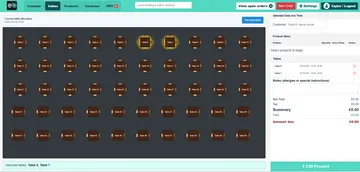
Create a table layout that reflects your venue
Set up the selected layout for each location with tables and decorative objects. Arrange the plan so staff can recognize the areas and tables they work with.
Arrange the floor plan
Drag, resize and rotate table and decorative objects when editing the layout.
Set each table’s details
Choose its shape or image, give it a name and set its capacity. Capacity is used when seat limits are enforced.
Choose the reservation duration
Set how long an assigned table is reserved. Attaching a table and reserving it for a period are different settings.
Configure arrival allowance
Set how early table-linked arrivals may check in, using the relevant table or global check-in policy.
The selected layout belongs to a location. Check the settings for each venue rather than assuming every location uses the same layout.
Control table availability and reservation times
Allocate tables according to the availability, capacity and booking windows configured for your venue. Where table selection is enabled for an activity booking, an available table can be allocated to each selected slot.
Staff can also reserve a table manually. A manually reserved table is removed from availability until it is released. This gives your team a direct control when a table should not be offered for allocation.
- Reservation duration matters: a setting of zero minutes
- attaches the table without reserving it.
- A duration of one minute or more
- reserves it for at least the configured period.
Allocate more than one table when your setup allows it
Where multiple-table allocation is enabled, a party or booking can use a selected set of tables. The system checks availability and capacity across that selection.
Staff remain responsible for choosing a suitable arrangement for the visit. Selecting several tables does not mean the system automatically optimises seating or physically joins tables.
Any override of the configured seat limit requires the relevant option and authorization. Confirm these controls when planning group bookings.
Connect table selection to the POS service workflow
When the location’s table layout is enabled for POS, staff can allocate an available table from the table view. The table association keeps the order connected to the relevant part of the venue.
Select the table
Review the table plan and choose an available table, or an enabled multiple-table selection, for the customer or booking.
Work with the order
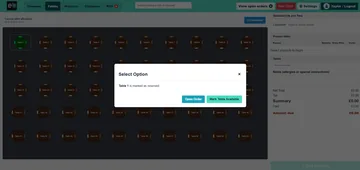
Use the configured POS journey for the table-linked order. The supplied reserved-table action menu includes an “Open Order” option.
Make the table available when appropriate
The reserved-table action menu also includes “Mark Table Available”. Staff should release a manually reserved table when it is ready to return to availability.
Marking a table available is a table-management action. It does not, by itself, confirm that an order has been paid or that the table has been physically cleared.
Choose staff-led or self-service table selection
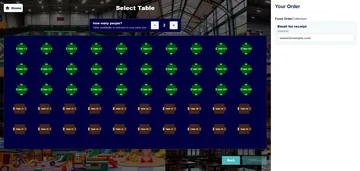
Table-management settings control whether the shared layout is available in POS and kiosk journeys at the location. Enable the routes that suit how your venue serves customers.
The demonstration kiosk screen shows a party-size choice and table-selection step. Use a demonstration to check the customer journey, availability rules and device setup you want to offer.
Add QR table ordering and kitchen displays where needed
Table selection and customer ordering are related but separate functions. With QR table ordering enabled and an active table link, customers can open the menu associated with their table.
Eligible preparation items can be sent to the kitchen display when the location has KDS enabled. Confirm the ordering channels, products and kitchen setup required for your venue.
Plan table management around your type of service
The right settings depend on when customers arrive, how tables are assigned and how orders are taken. Explore the wider setup for your business.
Restaurants
Plan table allocation around reservations and staff-led table service.
Cafés
Connect relevant table-led orders with the counter and service workflow you use.
Pubs and bars
Choose the table and ordering options that fit your seating and food or drink service.
Table management questions
What does restaurant table management software do?
EPOS Bookings provides a visual table layout, table details and capacities, reservation-duration settings and manual reservation controls. Table allocation can be enabled in POS, kiosk and relevant booking journeys according to the location’s configuration.
Can I change the floor plan and table capacities?
Yes. The layout editor supports moving, resizing and rotating table and decorative objects. You can configure a table’s shape or image, name and capacity. The selected layout is specific to its location.
Does assigning a table always reserve it?
No. A zero-minute duration attaches the table without reserving it. A duration of one minute or more reserves it for at least that configured period. Check which setting fits the booking or service you are offering.
Can one party use several tables?
Multiple-table allocation is available when enabled. Availability and capacity are checked across the selected tables. Any configured seat-limit override requires the relevant option and authorization.
How do staff release a manually reserved table?
The supplied table action menu includes “Mark Table Available”. A manually reserved table remains unavailable until released. Confirm the appropriate release step in your staff workflow; payment alone should not be assumed to release it.
Can customers select a table or order by QR code?
Kiosk table selection and QR table ordering are separate configured options. Kiosk access depends on table-management settings. QR ordering requires an active table link and an enabled ordering journey; kitchen routing also requires eligible products and a KDS-enabled location.
See your table workflow in a demonstration
Tell us about your layout, table capacities, reservation timings and ordering channels. We will walk through the relevant controls and discuss the configuration for your venue.